
Running out of storage space on your smartphone can be frustrating. You might see constant storage warnings, struggle to install new apps, or find that your phone cannot save additional photos and videos. Even simple tasks, such as downloading documents or updating applications, can become difficult when your storage is almost full.
However, freeing up space does not necessarily mean deleting your favorite photos, important documents, or useful applications. With a few simple changes, you can recover valuable storage while keeping the files that matter most.
Whether you use an Android phone or an iPhone, there are several ways to manage storage more efficiently. From clearing temporary files and removing unnecessary downloads to optimizing photo storage and managing messaging attachments, small steps can make a significant difference.
In this guide, we will explain how to free up storage space on your phone without deleting important files, while also helping you avoid common mistakes that could result in losing valuable data.
1. Check What Is Taking Up Storage Space
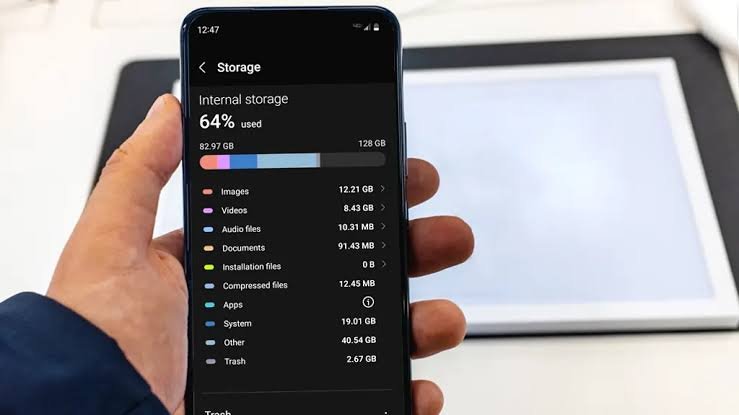
Before deleting anything, find out which files and applications are consuming the most space. This helps you focus on the biggest storage problems instead of removing files unnecessarily.
On most Android phones, open Settings and look for Storage. The exact menu name varies by manufacturer. Some devices also provide a breakdown of app storage, images, videos, downloads, and system files.
On an iPhone, go to Settings → General → iPhone Storage. Your phone will display the amount of used and available storage, along with a list of apps and their storage consumption.
Look for categories that occupy unusually large amounts of space, such as:
- Large videos and downloaded movies.
- Messaging apps with numerous attachments.
- Music and podcast downloads.
- Applications with large caches or offline data.
- Duplicate downloads and old installation files.
Why this helps: You can make informed decisions about what to clean up instead of deleting files at random. An app occupying several gigabytes may offer a better opportunity for storage recovery than dozens of small photographs.
2. Clear App Cache Without Removing Important Data
Applications often store temporary files to help content load faster and improve performance. These files are commonly called cached data.
Over time, certain apps may accumulate substantial caches containing thumbnails, temporary images, website resources, and other reusable information.
On many Android devices, you can clear an individual app’s cache by opening:
Settings → Apps → Select an app → Storage and cache → Clear cache
The exact wording varies by Android version and manufacturer.
Clearing the cache generally removes temporary files rather than your personal documents or account information. However, the app may need to download some content again the next time you use it.
Be careful not to select Clear storage, Clear data, or a similarly named option unless you understand its consequences. These options can remove locally stored information, reset app settings, or sign you out.
On iPhones, there is no universal system-wide button for clearing every app’s cache. Some applications offer their own cache-clearing options, while others may require you to manage downloaded content or reinstall the app.
Tip: Start with applications that store large amounts of temporary content, such as browsers and social media apps, and check how much space is actually recoverable before proceeding.
3. Remove Unnecessary Downloads
The Downloads folder is an easy place to find files you no longer need. Documents, images, PDFs, ZIP archives, and other files may remain on your phone long after you have finished using them.
Open your phone’s file manager and review the Downloads folder.
On Android, you can usually use the Files app or your manufacturer’s file manager. On an iPhone, open the Files app and check Browse → Downloads, including both iCloud Drive and On My iPhone where applicable.
Look for files such as:
- Duplicate PDFs and documents.
- Old installation packages.
- Compressed archives you have already extracted.
- Expired tickets or documents that you no longer need.
- Large files downloaded temporarily for work or study.
Before removing anything, open unfamiliar files to confirm their purpose. If a document is important, consider moving it to a trusted cloud storage service or computer first.
Remember that deleting a file from one location may not remove other copies stored elsewhere, and cloud-synced folders may synchronize deletions across devices.
Why this helps: Download folders often contain forgotten files that occupy storage without providing much ongoing value.
4. Optimize Photo and Video Storage
Photos and videos are among the biggest storage consumers on modern smartphones. High-resolution images, long recordings, and 4K videos can occupy several gigabytes surprisingly quickly.
Fortunately, you may be able to reduce the amount of local storage they use without permanently losing access to your memories.
Use cloud photo optimization
On an iPhone, Apple’s iCloud Photos service includes an Optimize iPhone Storage option. When enabled, full-resolution originals can be stored in iCloud while space-saving versions remain on the device as needed.
To find the option, open:
Settings → Your name → iCloud → Photos → Optimize iPhone Storage
The exact menu layout may vary with your iOS version.
On Android, Google Photos offers backup features, and its Free up space function can remove eligible local copies of photos and videos that have already been backed up.
Before using either service, confirm that your files have successfully uploaded. Cloud storage availability, subscription limits, account settings, and backup status all matter.
Also remember that cloud synchronization is not always the same as an independent backup. For example, deleting a photo from a synchronized photo library may also delete it from the cloud library and other synced devices.
Important: Never assume that a photo is safely backed up simply because you can see it in a gallery app. Verify that the original file is available in your cloud account before removing its local copy.
5. Find and Remove Duplicate Photos
Over time, your gallery may accumulate duplicate or nearly identical pictures. These can come from repeated downloads, screenshots, messaging apps, photo editing, or transferring files between devices.
Removing confirmed duplicates can free storage without sacrificing important memories.
On supported iPhones, open the Photos app and look for the Duplicates collection under Utilities, if available.
On Android, Google Photos may help identify similar images, but features differ across versions and devices. Some file managers also provide duplicate-file detection.
Before deleting anything, compare the images carefully. Two photographs that look similar may contain different details, expressions, or image quality.
Be especially careful with third-party cleaner apps that request broad access to your photos and files. Use trusted tools, review their permissions, and confirm which files they intend to remove.
Tip: Start with exact duplicates and unnecessary screenshots rather than deleting large groups of similar photographs automatically.
6. Delete Offline Videos, Music, and Podcasts
Streaming services make it easy to download entertainment for offline use. However, downloaded content can quietly occupy several gigabytes of internal storage.
If you use services such as Netflix, Spotify, YouTube Premium, or podcast applications, review their download sections.
Look for movies you have already watched, playlists you no longer listen to, old podcast episodes, and content downloaded for trips that have ended.
You generally do not need to delete the apps themselves. Removing their offline downloads may recover substantial storage while keeping your account, settings, and playlists intact.
The steps vary by service, but downloads are usually managed inside the relevant application.
Why this helps: Offline media can be downloaded again when needed, provided the content remains available and your subscription or account supports it.
7. Manage WhatsApp and Other Messaging Attachments
Messaging apps can consume a surprising amount of storage because conversations often include photos, videos, voice messages, documents, and forwarded media.
WhatsApp, for example, provides storage-management tools that help you identify large files and review media associated with chats.
Open WhatsApp and look for Settings → Storage and data → Manage storage. Menu wording may differ by version.
Review large videos, repeated forwards, and media you no longer need. If a file contains important information, save a copy somewhere safe before removing it from the conversation or app storage.
Other messaging applications may have similar options for managing downloaded media and cached content.
Be aware that removing a message attachment may affect your ability to access it within the conversation. If you need the file for work, school, or personal records, preserve it first.
You can also reduce future storage growth by adjusting automatic media downloads in your messaging app’s settings.
Why this helps: Managing attachments can recover substantial space without requiring you to delete entire conversations or reinstall the app.
8. Offload or Archive Apps You Rarely Use
You may have applications installed that you have not opened for months. Games, editing tools, shopping apps, and travel apps can occupy substantial storage even when you rarely use them.
Instead of immediately deleting everything, look for options that preserve useful information.
On iPhone
The iPhone’s Offload App feature removes an app while keeping its documents and data for a future reinstall, where supported.
You can review recommendations in Settings → General → iPhone Storage and choose an individual app to offload.
You can also enable automatic offloading of unused apps through the iPhone Storage settings.
Offloading does not guarantee that every app’s data will be recoverable in every situation, so make sure important information is backed up or synchronized before proceeding.
On Android
Some Android devices and Google Play features support app archiving. Archiving can remove parts of an application while preserving certain app data and allowing the app to be restored later.
Availability depends on the device, Android version, application, and settings.
If archiving is unavailable, consider whether the app offers account synchronization or cloud backups before uninstalling it.
Why this helps: You can reduce the amount of storage occupied by applications you rarely use without automatically sacrificing all their associated data.
9. Clear Your Browser’s Temporary Data
Web browsers store cached files, cookies, browsing history, and other data to improve browsing performance and remember your preferences.
Over time, this data can grow, although the amount of space recoverable varies by browser and usage.
On Android, open your browser’s settings and look for options related to privacy, browsing data, or cached images and files.
In Google Chrome, you can generally find these options under the browsing-data deletion settings.
On an iPhone, Safari’s website data can be managed through Safari settings, while Chrome and other browsers have their own controls.
Before clearing browser data, understand what each option does. Removing cookies or website data may sign you out of websites, while deleting saved passwords or other stored information can create additional problems if it has not been backed up.
If your goal is to recover storage, focus on temporary cached files rather than removing everything indiscriminately.
10. Transfer Large Files to a Computer or External Drive
If you want to keep your original photos, videos, and documents without storing everything on your phone, transferring files to another storage location can be an effective solution.
Depending on your device, you can use:
- A Windows PC or Mac.
- A compatible external SSD or USB drive.
- A trusted cloud storage service.
- A network-attached storage device.
For example, you might move old video recordings to an external drive while keeping recent photos on your phone.
After transferring files, verify that they open correctly on the destination device. If the files are important, consider keeping a second backup on another drive or in a separate backup service.
Only remove the local copies once you are confident that the transfer succeeded and the files are safely accessible elsewhere.
Why this helps: You retain access to important files without requiring them all to occupy your phone’s internal storage.
11. Reduce the Size of Future Videos
If your phone frequently runs out of space, changing how you record videos can prevent the problem from returning.
High-resolution video, high frame rates, and certain recording formats can create very large files.
Open your camera settings and review the available video recording options.
For everyday recordings, 1080p may be sufficient instead of 4K. Lowering the frame rate can also reduce file sizes in some recording modes, although the exact savings depend on the phone and recording settings.
If you regularly record long videos for work, school, or personal projects, consider transferring completed recordings to a computer or cloud service.
Avoid reducing quality unnecessarily if you need high-resolution footage for editing or professional use.
Why this helps: Managing recording settings gives you more control over how quickly your available storage is consumed.
12. Clean Up Offline Maps and Navigation Data
Navigation apps often let you download maps for offline use. This is useful when traveling or navigating areas with limited connectivity, but downloaded maps can occupy storage.
If you use Google Maps or another navigation app, review the offline maps section and remove areas you no longer need.
Keep offline maps for places you visit regularly or destinations where reliable mobile connectivity may be unavailable.
Before deleting maps, consider whether you will need them during an upcoming trip.
Offline map storage varies depending on the size of the selected area and the app’s data requirements.
Why this helps: You can retain the maps you actually need while removing large downloads associated with past trips.
13. Check for Large Files and Old Screen Recordings
Screen recordings can be particularly storage-intensive because they capture everything happening on your display over time.
You may have recordings created for troubleshooting, gaming, tutorials, video calls, or demonstrations that are no longer necessary.
Review your gallery and file manager for screen recordings, large exported videos, and temporary project files.
Also check whether editing applications have saved duplicate exports or intermediate versions of the same video.
Before removing an old recording, make sure it does not contain information you need to keep, such as a tutorial, proof of a transaction, or important work material.
This approach can be particularly effective if you frequently record your screen or edit media on your phone.
14. Be Careful With Cleaner Apps
Many applications promise to clean your phone, boost performance, or free up large amounts of storage with a single tap.
Some tools provide legitimate functions, such as identifying large files, finding duplicate images, or clearing certain temporary data. However, others may offer limited benefits, display excessive advertisements, or request unnecessary permissions.
You generally do not need a third-party cleaner app to perform basic storage maintenance.
Your phone’s built-in storage settings, file manager, photo app, and application settings are usually a better starting point.
If you choose to use a cleaner app, review its developer, privacy policy, permissions, and deletion process. Avoid granting access to sensitive information unless the feature genuinely requires it.
Never allow an unfamiliar application to automatically delete all files it considers unnecessary without reviewing the list first.
15. Use Cloud Storage Carefully
Cloud storage services can help reduce the amount of data stored locally on your phone.
Depending on the service, you can upload photos, videos, documents, and other files, then access them through an app or website when needed.
Popular options include Google Drive, Google Photos, iCloud Drive, and Microsoft OneDrive.
However, there are a few important things to understand.
First, uploading a file does not necessarily remove its local copy. You may need to use the relevant app’s storage-management feature or remove the local download separately.
Second, cloud storage is not always unlimited or free. Check your account’s available capacity and subscription limits.
Third, synchronization can cause deletions to propagate between devices. If you delete a file from a synchronized folder, you may also remove it from the cloud.
For particularly important documents and photographs, maintain an independent backup when possible rather than relying entirely on one synchronized library.
Best practice: Upload important files, confirm the upload is complete, verify that the files can be opened, and only then remove local copies using the appropriate method.
16. Restart Your Phone After Cleaning Up
Restarting your phone can help resolve certain temporary software issues and refresh system processes.
However, restarting does not normally free large amounts of permanent storage by itself. Its main benefit is troubleshooting rather than removing photos, downloads, or app data.
If you have cleared caches, removed large downloads, or updated several applications, restarting can be a reasonable final step.
If your phone continues to report unusually high system storage usage, check for operating-system updates and manufacturer-specific troubleshooting guidance.
Do not attempt to remove system files manually, as doing so can cause applications or the operating system to malfunction.
Android vs. iPhone: Which Storage-Cleaning Methods Work Best?
Although many storage-management principles apply to both platforms, some tools differ.
| Storage task | Android | iPhone |
|---|---|---|
| Check storage usage | Settings → Storage, depending on device | Settings → General → iPhone Storage |
| Clear individual app cache | Often available through app storage settings | Depends on the app; no universal cache-clearing button |
| Manage photos | Google Photos, gallery, or file manager | Photos app and iCloud Photos |
| Remove app while preserving some data | Archiving may be available | Offload App |
| Review downloads | Files app or manufacturer file manager | Files app |
| Manage messaging media | App-specific storage tools | App-specific storage tools |
| Remove offline media | Within the relevant app | Within the relevant app |
The most effective method depends on which category is using the most space on your particular device.
Common Mistakes to Avoid When Freeing Up Storage
Freeing up space is useful, but careless cleanup can result in lost information. Keep these points in mind before making changes.
Do Not Delete Files Without Checking Them
A document with an unfamiliar filename might contain an important invoice, school assignment, or work record. Review files before deleting them.
Do Not Confuse Cache With App Data
Clearing temporary cache files is generally less disruptive than clearing all app storage. The latter can remove downloaded content, settings, and locally stored information.
Do Not Assume Cloud Backup Is Complete
Wait for uploads to finish and verify that important files are accessible from your cloud account before removing local copies.
Do Not Empty Every Trash Folder Immediately
Many gallery apps and file managers keep deleted files in a trash or recently deleted folder for a limited period. These files may still occupy storage, but permanently deleting them removes an opportunity to recover them.
Review the contents before emptying the folder.
Do Not Delete System Files Manually
Operating-system files and application components may be necessary for your phone to work correctly. Use the built-in storage-management tools instead of deleting unfamiliar system files.
Frequently Asked Questions
How can I free up phone storage without deleting photos?
You can clear app caches where supported, remove unnecessary downloads, delete offline videos and music, manage messaging attachments, offload unused apps, and transfer large files to a computer or external drive.
You can also use a photo backup service and remove eligible local copies after verifying that your originals are safely backed up.
Why is my phone storage full when I have very few apps?
Photos, videos, messaging attachments, offline downloads, browser data, and app caches can consume substantial space. System data and locally downloaded content may also account for a large portion of your storage.
Check the storage breakdown in your phone’s settings to identify the main cause.
Does clearing the cache delete important files?
Clearing an app’s cache generally removes temporary files rather than your personal documents or account data. However, avoid selecting Clear Data or Clear Storage unless you understand what the app will remove.
Is it safe to use a phone cleaner app?
Some cleaner apps offer useful file-management features, but many basic cleanup tasks can be performed using built-in tools. Avoid unfamiliar apps that request excessive permissions or automatically delete files without your review.
How much free storage should I keep on my phone?
There is no single requirement for every smartphone, but keeping several gigabytes available is a useful practical goal. Phones with limited storage may benefit from maintaining more headroom for app updates, temporary files, photos, and operating-system operations.
If your phone frequently reaches its storage limit, consider keeping roughly 10% to 20% of its capacity free when practical. This is a general guideline, not a strict technical requirement.
Will freeing up storage make my phone faster?
It can help in certain situations, especially when a device is nearly full and struggles to download updates or manage files. However, deleting files does not automatically improve every aspect of performance.
Processor limitations, battery condition, software issues, and memory pressure can also affect responsiveness.
Can I increase my phone’s internal storage?
Most modern smartphones do not allow you to upgrade their internal storage after purchase. Some Android devices support microSD cards, but compatibility varies. Cloud storage and external drives can provide additional space for files without increasing the phone’s built-in capacity.
What should I do if system storage takes up too much space?
Restart your phone, review available software updates, and consult the manufacturer’s storage guidance. System storage can include operating-system components, temporary files, and other data that should not be removed manually.
If the amount remains unusually high, contact the device manufacturer or an authorized support provider before attempting a factory reset.
Final Thoughts
Running out of smartphone storage does not mean you need to delete your favorite photos, important documents, or useful applications. In many cases, a few careful changes can recover a surprising amount of space while preserving the information you want to keep.
Start by checking your storage breakdown, clearing temporary files where supported, removing unnecessary downloads, and reviewing offline media. Then consider cloud photo optimization, app offloading, and transferring large files to another storage location.
Most importantly, verify that important files are backed up before removing local copies. Avoid unfamiliar system files, review deletion lists carefully, and use your phone’s built-in tools whenever possible.
The best way to manage smartphone storage is to remove unnecessary data while protecting what matters. With a little regular maintenance, you can keep your phone organized, make room for new content, and avoid unnecessary upgrades simply because your storage is full.